Design Your Own Cross Stitch Pattern with Reusable Motifs
November 9, 2026
Most patterns are built from small pieces. A sampler is a row of houses, a few trees, an alphabet and a border. A birth announcement is a name, a date and a little motif in each corner. If you design your own cross stitch pattern, you end up charting the same heart, the same sprig or the same initials again and again. Photo2Stitch now keeps those pieces for you: save a design as a motif once, then place it into any of your other patterns as many times as you like.
Here's the whole idea in under a minute: one spider, saved as a motif, placed around a golden lab to make a Halloween border, with his name added underneath.
What a cross stitch motif library does
A motif is a small design you want to reuse: a border corner, a flower, a monogram, a pet's face you charted once and want on three different gifts. The motif library is where they live. It sits in your pattern library, next to your patterns, with a Patterns / Motifs switch at the top.
Each motif keeps everything it was drawn with. Full stitches come along, and so do details like backstitch, half and quarter stitches, French knots and beads. When you place it, all of that lands in the new pattern and shows up in its thread list.
Start from a blank canvas or from a photo
There are two ways to make the design that becomes a motif.
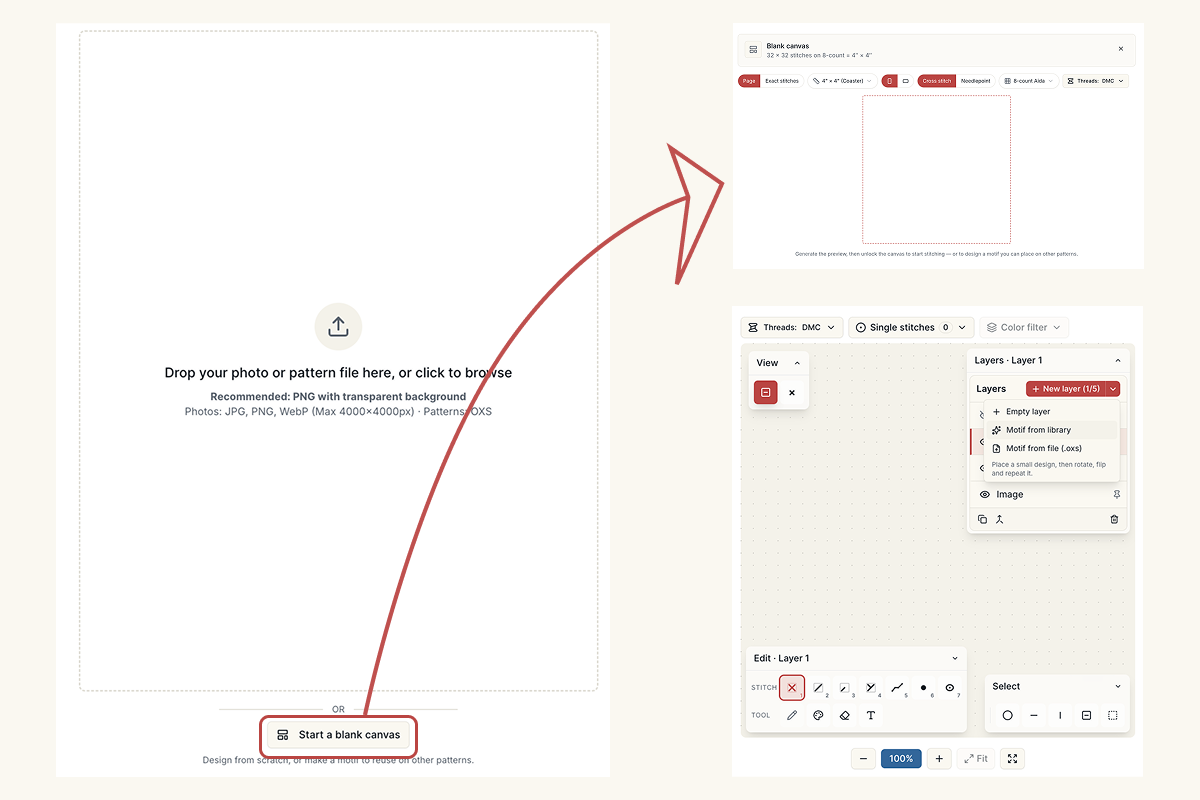
From scratch. In the editor, choose Start a blank canvas. Pick the size, either a page size or Exact stitches for something small like a 20 × 20 corner piece, then the fabric and the thread brands. You get a blank cross stitch pattern, an empty grid that unlocks like any other pattern, and from there you draw it stitch by stitch with the canvas tools.
From a photo. Convert a photo as usual and clean it up on the Digital Canvas. A pet's face or a house front charted from a photo makes a good motif, because you'll often want it on more than one gift.
Save a design as a motif
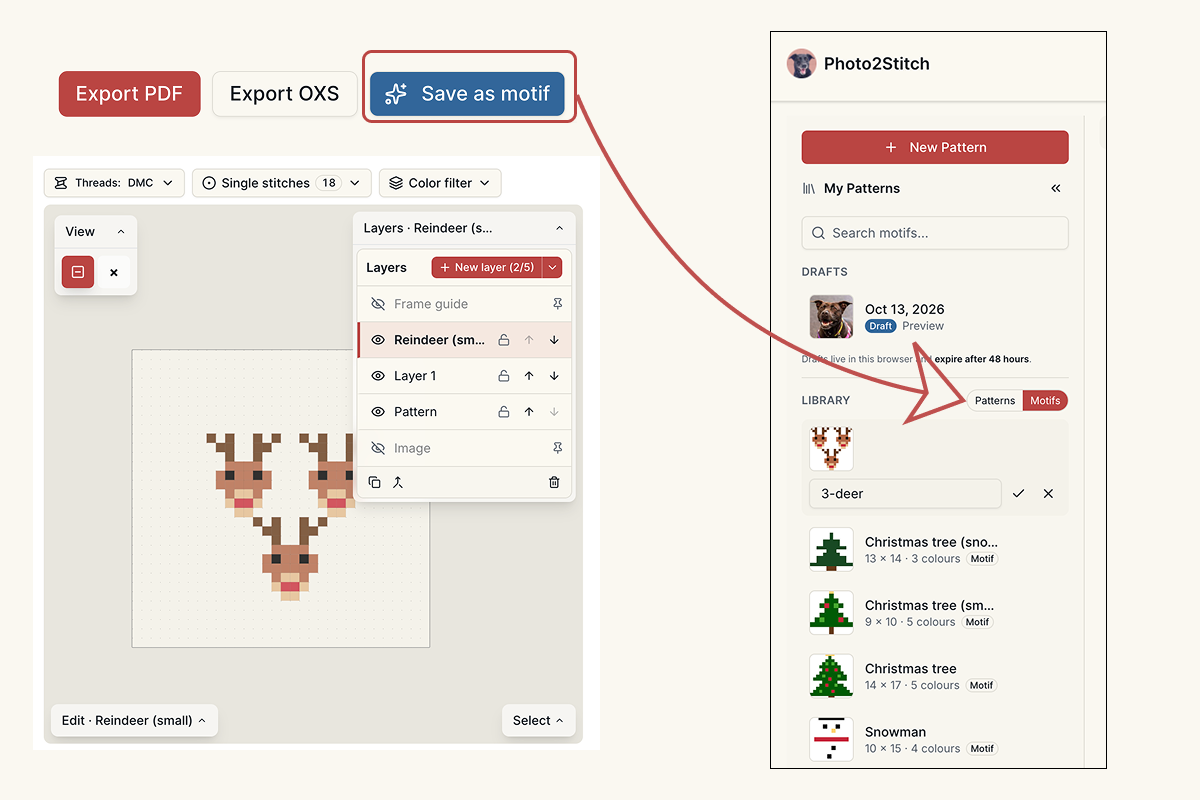
Open the pattern on the Digital Canvas and choose Save as motif next to Export, then give it a name. Photo2Stitch trims it to the area you actually stitched, so a 20-stitch sprig on a full page is saved as a 20-stitch motif, not as a page of empty fabric.
The whole canvas becomes the motif. If you want only part of a pattern as a motif, make a copy of the pattern, delete what you don't need, and save that.
The motif stays an ordinary canvas. Open it from the Motifs side of your library to change it, and the library copy updates a few seconds after you stop editing. If you change your mind, Move back to Patterns turns it back into a normal pattern.
Combine cross stitch patterns by placing motifs
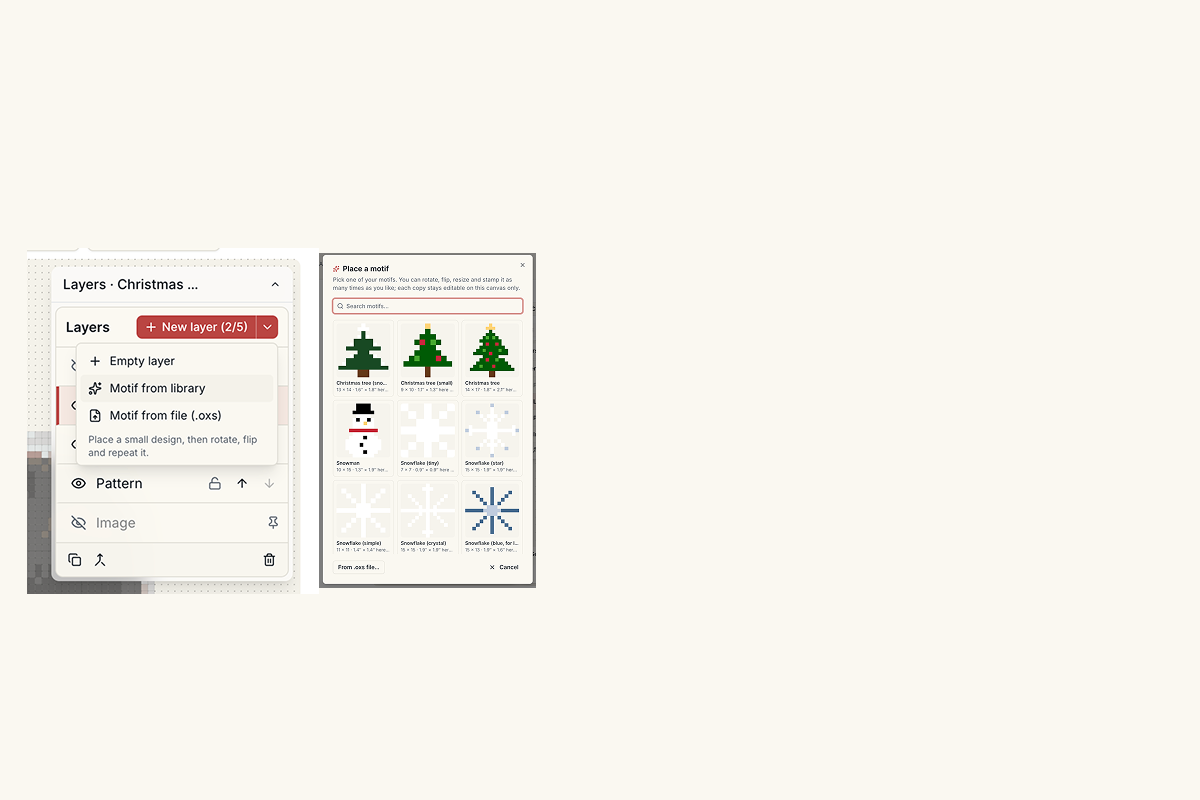
Placing a motif is how you combine cross stitch patterns without redrawing anything. In another unlocked pattern, open the Layers panel, open the new layer menu and choose Motif from library, or Motif from file (.oxs) to bring in a chart from another program. Each layer also has a button for placing a motif straight into it.
The picker shows your motifs with their size on this pattern's fabric. A motif too large for the canvas is grayed out, with its size, so you can see why.
Pick one and it follows your pointer as a preview. Before you stamp it you can:
- rotate it a quarter turn (R, or Shift+R the other way);
- flip it horizontally or vertically (H and V);
- make it larger or smaller (+ and −), from half size up to four times;
- nudge it one stitch at a time with the arrow keys.
Press Enter or Place to stitch it down, and Done (or Esc) when you're finished. On a phone, drag the preview into position and tap Place, so moving around the pattern never stamps a copy by accident. The layer remembers where its motif came from, so you can tell later which piece is which.
Half size is approximate and needs an even width and height: every 2 × 2 block becomes one stitch in its main color, so small details can merge. Enlarging is exact, with each stitch becoming a 2 × 2, 3 × 3 or 4 × 4 block.
Repeat a motif to make a cross stitch border
You don't leave placement mode after the first stamp, which makes a cross stitch border pattern quick to build. Place a corner motif, nudge along, place again, and keep going. For the other three corners, flip or rotate the same motif instead of charting new ones, and the border stays symmetrical.
A border on its own layer is easy to recolor or hide while you work on the middle of the design, and it can't be painted over by accident when you lock that layer.
Design a cross stitch sampler from your own motifs
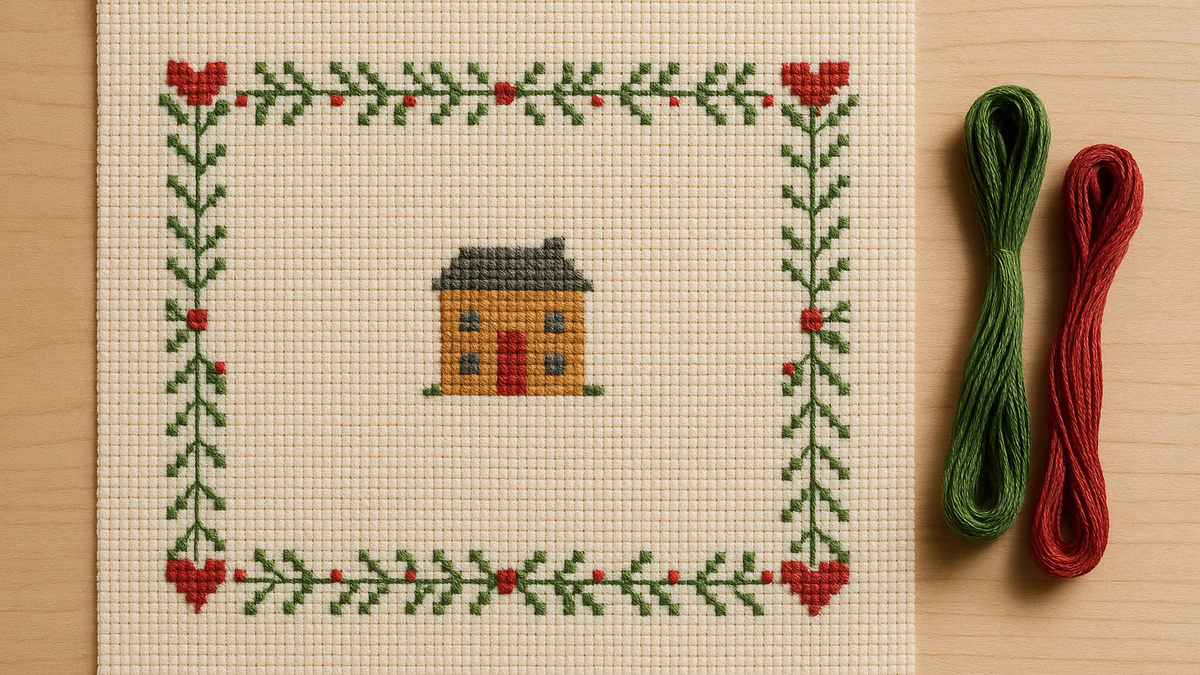
Samplers are where a motif library pays off. Traditional samplers repeat a handful of pieces: an alphabet, a row of trees, a house, a pair of birds, a strawberry border. Chart each one once, save it as a motif, and you can lay out a new sampler in an evening, then another with a different arrangement for a different person.
For a personal sampler, mix motifs with lettering. Full-stitch text or backstitch lettering covers the name and date; the guide to backstitch lettering compares the two. The guide to personalizing a pattern covers frames and borders drawn by hand, which work well alongside placed motifs.
What happens when you edit a motif
Every placed motif is a copy. Change it in one pattern and nothing else changes: not the original motif, and not the other patterns you placed it in. Edit the original and the next copies you place use the new version, while the ones already placed stay as they were.
That's deliberate. A pattern you've already started stitching shouldn't change under you because you tidied up a motif for something else.
What you need
Saving and placing motifs works on any unlocked pattern: a single pattern, a membership, or the free pattern credit you get when you sign up. A blank canvas unlocks the same way as a converted photo, at the same price. See pricing for the options.
If you have motifs charted in other software that exports .oxs, you can place those straight from the file; the guide to OXS files covers what comes across.
Try it with your own photo
Upload a photo and see your counted cross stitch pattern preview — free, before you pay anything.
Try the free pattern preview