How to Remove the Background from a Photo for Cross Stitch
November 19, 2026
Most photos worth stitching have something behind the subject: a sofa behind the dog, a kitchen behind the baby, a car park behind the wedding couple. A converter charts all of it, and the background usually takes a bigger share of the pattern than you'd guess. Removing it before you convert often improves a portrait more than any other setting, so this guide covers how to remove the background from a photo for cross stitch, and when to keep it.
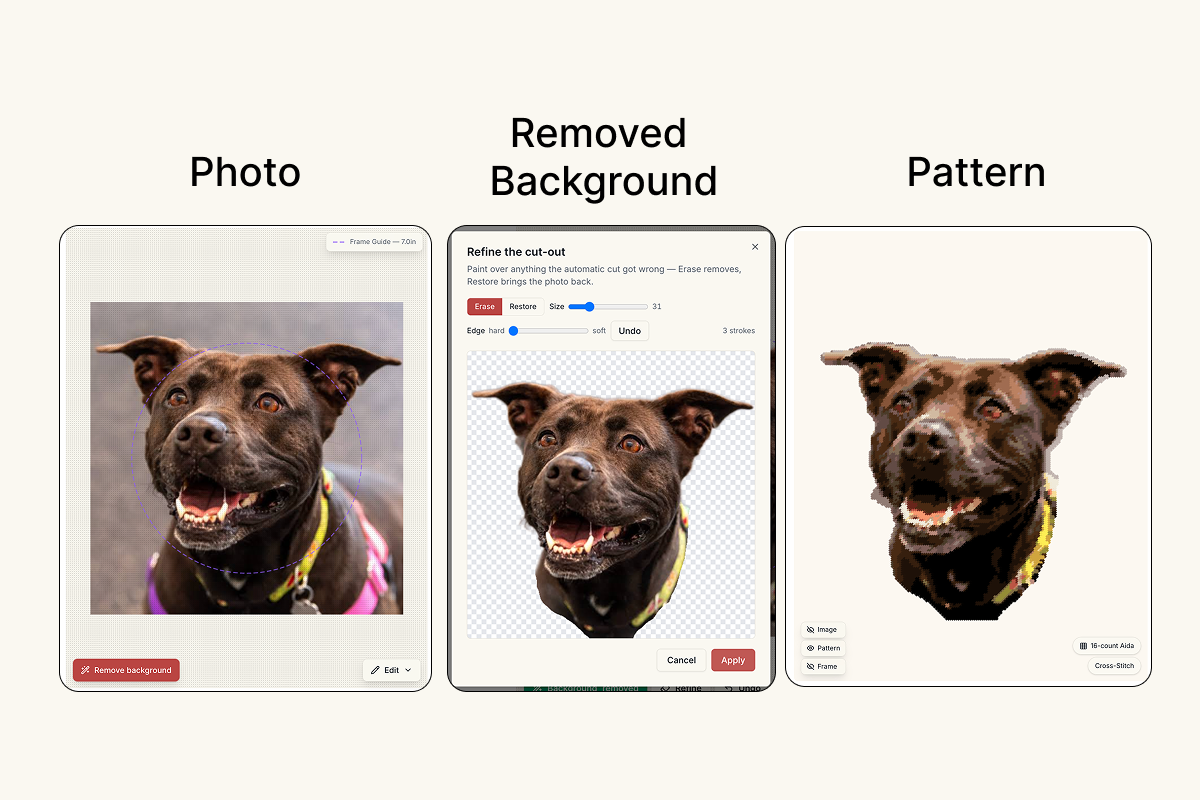
Why the background matters in a cross stitch pattern
A pattern has a fixed number of colors, and the converter shares them out across the whole picture. If a third of the photo is a patterned rug, a good part of your color budget goes on the rug, and the dog's face gets fewer shades than it needs. Take the rug away and the same color count goes to fur, eyes and shadows.
It also changes the amount of stitching. With the background removed, those squares are left as plain Aida, so a 10 × 10 inch portrait might need half the stitches it would have with a full background. For a gift on a deadline that's often the difference between finishing and not.
And it gives you clean edges. Busy backgrounds turn into speckled single stitches where they meet the subject, which is most of what makes a photo pattern look messy. The guide to confetti stitches explains where those come from.
How to remove the background from a photo for cross stitch
- Upload the photo in the editor and crop it around the subject.
- Press Remove background. When it's done, the cut-out replaces the photo in the workspace, on a checkerboard so you can see what was removed.
- Look at the edges. If something is wrong, open Refine: paint with Erase to take more away, or Restore to bring the original photo back where the cut went too far. Press Apply when it looks right.
- Undo puts the original background back if you'd rather compare, and Redo brings the cut-out back.
- Generate the free preview as usual.
Remove your photo's background free when you sign in. Every pattern you buy adds 2 more removals, and members get unlimited background removal.
If you already cut the subject out with your phone's photo app, you can upload that PNG as it is. A transparent background is treated the same way.
Here it is on a real photo: Spooky the black cat, background removed, set on an orange circle for Halloween, with her name added in full-stitch text.
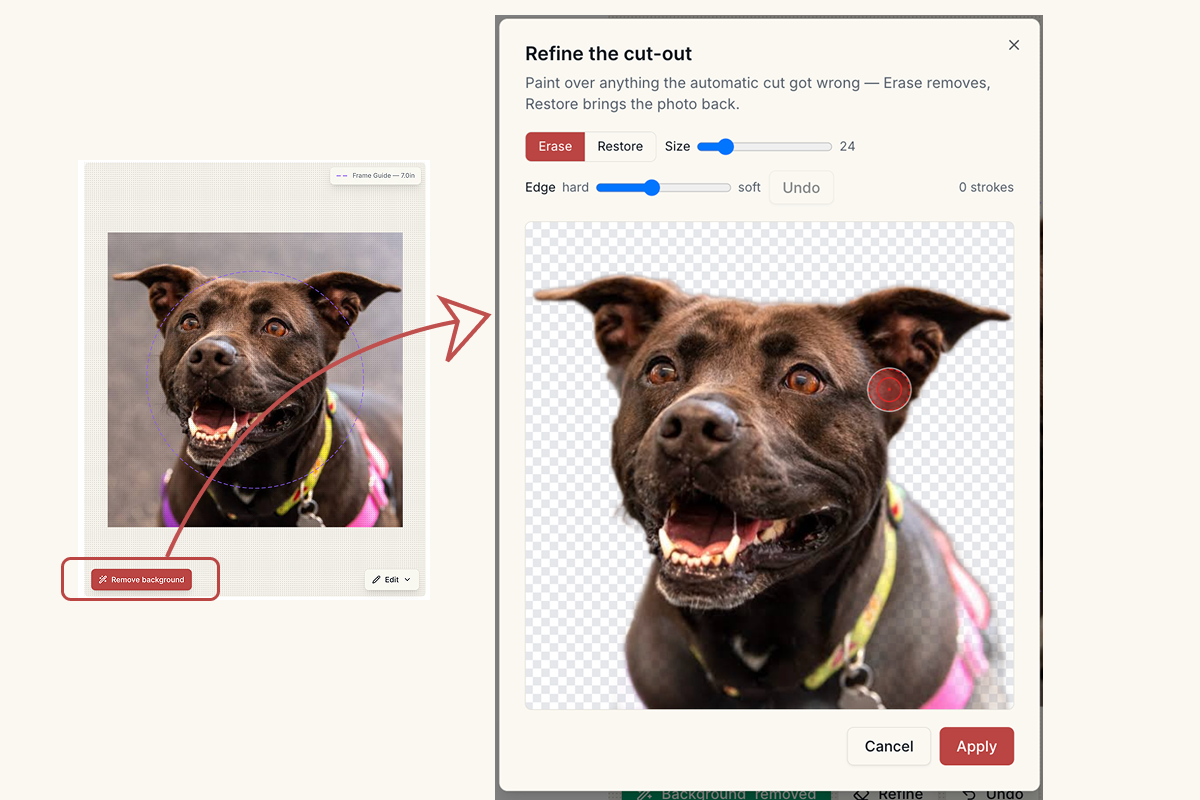
Refining fur, hair and soft edges
The automatic cut is good at solid shapes and less sure at fuzzy ones. Long fur, flyaway hair and whiskers are where you'll spend your time in Refine.
A softer brush helps here. With the Edge slider moved towards soft, the brush fades out towards its edge, so a stroke along a furry outline blends instead of leaving a hard cut line. Use a hard brush for clear mistakes, like a chair leg that stayed attached to a cat.
Don't chase every hair. At 14-count a whisker is narrower than one stitch, and it won't survive the conversion whatever you do. What matters is the outline at stitch scale: the shape of the ears, the line of the jaw, the top of the head. If you plan to outline the subject in backstitch later, small edge flaws disappear under the line anyway.
When to keep the background
Some photos are about the place as much as the subject. A house, a garden, a beach at sunset or a couple in front of the church they married in all lose their point without the setting. Keep those backgrounds, and give the pattern a few more colors so the scene and the subject both get enough.
A simple, even background is also fine to keep. A dog on a plain blue blanket converts into a calm block of two or three blues, which can look better than bare fabric.
Tidying what's left on the Digital Canvas
Once you unlock the pattern, the Digital Canvas lets you clean up whatever the cut-out missed: stray stitches along the edge, a patch of floor that survived, a color that crept into the background. Select the area, remove or recolor it, and the thread list updates with it.
For portraits of animals, the pet portrait guide covers the rest of the photo choices, and the step-by-step guide walks through the whole conversion.
Try it with your own photo
Upload a photo and see your counted cross stitch pattern preview — free, before you pay anything.
Try the free pattern preview